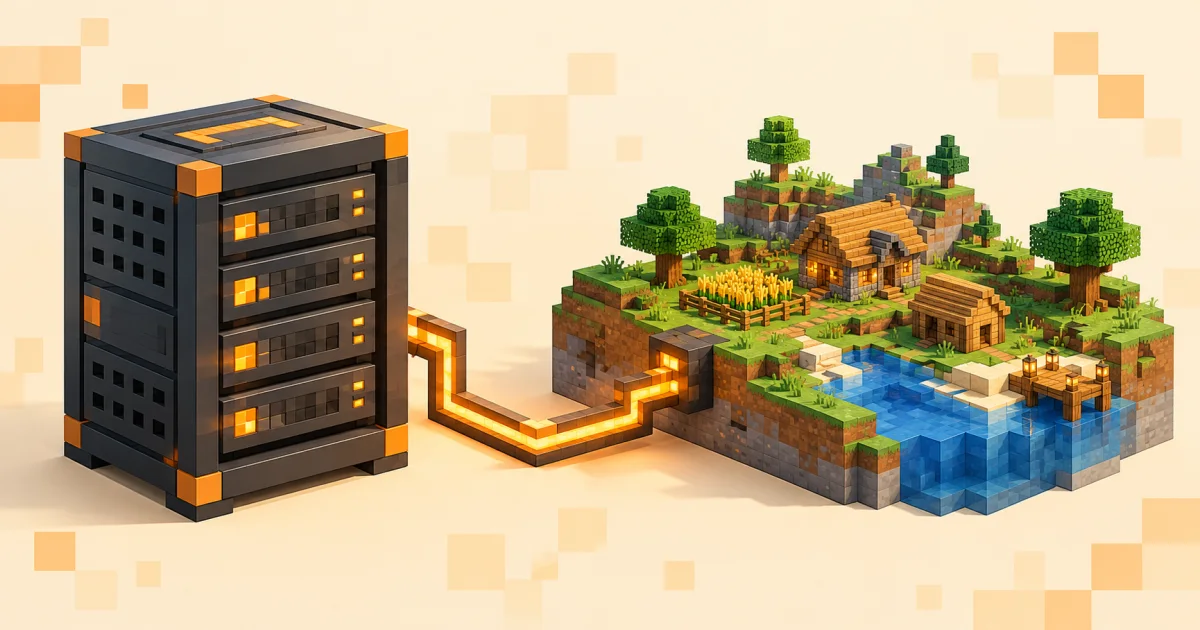
Running your own Minecraft server gives you control over the world, rules, game mode, plugins, mods, and the people who can join. You can host a small private world for friends or build a public community that stays online around the clock.
This guide uses Paper for Minecraft: Java Edition because it is built on Spigot, improves performance, and supports the Bukkit and Spigot plugin ecosystem. We also cover Bedrock Dedicated Server for Bedrock players. We will explain the simplest hosted option first, then walk through setting up a server on your own computer.
Before You Start: Java or Bedrock?
Choose the server edition that matches the devices your players use:
- Java Edition with Paper is primarily for Windows, macOS, and Linux players. Paper is based on Spigot and supports a large selection of Bukkit, Spigot, and Paper plugins.
- Bedrock Edition supports Windows Bedrock, mobile devices, and consoles. Mojang provides separate Bedrock Dedicated Server software.
- Crossplay is possible by running a Java server with software such as Geyser, but it requires additional configuration and testing.
A Java player cannot normally join a Bedrock server, and a Bedrock player cannot normally join a Java server. Decide which edition you need before downloading any files.
Choose Between Home Hosting and a Minecraft Host
Hosting from your own computer is useful for learning and small private worlds. It also means your computer must remain powered on, your internet connection must handle every player, and you may need to configure your router and firewall.
A dedicated Minecraft host is usually easier for a public server because it keeps the server online when your computer is off and gives you a web control panel for files, backups, updates, and restarts.
The easier hosted option: Voltra.gg
If you do not want to manage Java installations, port forwarding, changing home IP addresses, or keeping a computer online, Voltra.gg Minecraft hosting provides Java and Bedrock hosting through a control panel. Its current Minecraft plans include file access, backups, DDoS protection, support for popular server software and mod loaders, and server locations in multiple regions.
Choose a location close to most of your players. For a Java plugin server, select Paper as the server software, choose your Minecraft version, and deploy it from the panel. You can upload an existing world or Spigot-compatible plugins later.
Partner note: Voltra.gg is a CraftedServerlist hosting partner. Using the link above supports CraftedServerlist at no additional cost to you.
How to Set Up a Paper Minecraft Server
Paper is a high-performance Minecraft Java server based on Spigot. It is a practical default for a public server because it adds optimizations, more configuration, and support for most Bukkit and Spigot plugins. Paper is also a drop-in replacement when moving from CraftBukkit or Spigot.
1. Create a dedicated server folder
Create an empty folder somewhere easy to find, such as Minecraft-Server. Keep the server JAR, configuration files, world folders, logs, and backups together inside this folder.
2. Install the correct version of Java
Open Command Prompt, PowerShell, or a terminal and run:
java -versionIf the command is not found, install the Java version required by your Paper release. At the time of writing, Paper's documentation recommends Java 21 for Minecraft 1.20 through 1.21.11 and Java 25 for Minecraft 26.1 and newer. Older Minecraft versions may require older Java releases, so verify the current Paper requirements for the version you select.
3. Download Paper
Download the build for your Minecraft version from the official Paper downloads page. Move the downloaded JAR into your server folder and rename it to paper.jar so the startup command remains simple when you update builds later.
Only download server software from its official website or verified project page. Random reuploads may be outdated or unsafe.
4. Run the server for the first time
Open a terminal inside the server folder and run:
java -Xms4G -Xmx4G -jar paper.jar --nogui-Xms4G and -Xmx4G give this example server 4 GB of memory. Adjust the amount for your player count and plugins, but leave enough memory for the operating system and anything else running on the computer. Paper also provides a startup-script generator if you want a command tailored to your system.
The first launch will stop after generating several files. This is expected.
5. Review and accept the EULA
Open eula.txt, read the linked Minecraft End User License Agreement, and change:
eula=falseto:
eula=trueSetting this value to true confirms that you accept the agreement. Server owners should also review the current Minecraft Usage Guidelines, especially before selling ranks, cosmetics, currency, or other benefits.
6. Configure server.properties
Open server.properties with a text editor. Useful settings include:
motd=My Minecraft Server— the description shown in the multiplayer menu.gamemode=survival— the default game mode.difficulty=normal— peaceful, easy, normal, or hard.max-players=20— the maximum number of simultaneous players.online-mode=true— verifies player accounts. Keep this enabled for normal public servers.white-list=true— useful for a private server.server-port=25565— the standard Java server port.
In most home setups, leave server-ip blank. Entering the wrong local or public address can prevent the server from binding correctly.
7. Start Paper again
Run the same Paper startup command again. When the console shows Done, the server is ready. Paper will also create folders and configuration files including plugins, config, paper-global.yml, and per-world Paper settings.
On the host computer, test it by adding localhost as the server address. Other devices on the same home network can connect using the host computer's local IP address.
8. Install Spigot and Paper plugins
Download plugins from a trusted project page such as PaperMC Hangar, Modrinth, or the plugin author's official page. Confirm that the plugin supports your Minecraft and Paper version.
- Stop the server completely.
- Place the plugin's
.jarfile directly inside thepluginsfolder. - Start the server again.
- Run
pluginsin the console or/pluginsin game to confirm it loaded.
Paper supports most Bukkit and Spigot plugins, but compatibility is not guaranteed for every old or abandoned plugin. Read the plugin's requirements and install any listed dependencies. Avoid using /reload; a full restart is safer when adding or updating plugins.
Allow Players Outside Your Network to Join
For a home-hosted Java server, you will generally need to forward TCP port 25565 from your router to the computer running the server. You may also need to allow Java or the server port through the computer's firewall.
- Give the server computer a stable local IP address.
- Open your router's port-forwarding settings.
- Forward external TCP port 25565 to the server computer's local IP and port 25565.
- Allow the port through the operating-system firewall.
- Test the server from a connection outside your home network.
Router interfaces differ, so use your router manufacturer's documentation. Never expose your router administration page or a game-panel password to other players. Remember that sharing a home-hosted server address reveals your public IP address; dedicated hosting avoids exposing your home connection.
How to Set Up a Minecraft Bedrock Server
Download the appropriate Windows or Ubuntu package from the official Bedrock Dedicated Server page.
- Extract the downloaded ZIP into a new, empty folder.
- Review the included documentation and launch the Bedrock server executable or startup script.
- Edit
server.propertiesto set the world name, game mode, difficulty, player limit, allowlist, and ports. - Restart the server after changing its configuration.
- If hosting from home, allow and forward the configured Bedrock UDP ports shown in
server.properties.
Bedrock uses UDP rather than the Java server's normal TCP connection. Forwarding only Java's TCP port will not make a Bedrock server reachable.
Paper Plugins and Mods Are Different
This guide uses Paper for plugins. Choose the server platform that matches the content you want:
- Paper: the recommended choice in this guide. It is based on Spigot and supports most Bukkit and Spigot plugins while adding performance improvements and Paper-specific features.
- Spigot: the older plugin platform on which Paper is based. If a plugin supports Spigot, it will commonly work on Paper, but always check its compatibility information.
- Purpur: a Paper fork with additional gameplay and configuration options.
- Fabric, Forge, or NeoForge: mod loaders rather than Paper plugin servers. Players may need the same loader and mods installed on their clients.
- Velocity: a proxy commonly used to connect multiple Java servers into one network.
Do not put Fabric, Forge, or NeoForge mods into Paper's plugins folder. A file designed as a mod is not automatically a Paper or Spigot plugin. Back up the world before changing server software, and never install abandoned files from unknown download websites.
Secure the Server Before Inviting Players
- Keep
online-mode=trueunless you fully understand the security consequences. - Use an allowlist while the server is private or under construction.
- Give operator permissions only to people you trust.
- Keep Java, the server software, plugins, and mods updated.
- Use strong, unique passwords for hosting panels, SFTP, databases, and dashboards.
- Do not run the server as an administrator or root user when a restricted account will work.
- Do not publish console logs before checking them for IP addresses, tokens, or other private information.
Create Automatic Backups
At minimum, back up the world folders, server.properties, allowlist, permissions, plugin configuration, and mod configuration. Keep several dated backups and store at least one copy away from the server itself.
Always create a fresh backup before updating Minecraft, switching server software, installing a large plugin or mod, or importing a new world. A backup stored on the same disk is not enough if that disk fails.
Test Everything Before Launch
Ask one or two trusted players to test the server from outside your network. Check:
- Whether the address and port work.
- Whether Java, Bedrock, or crossplay users can join as intended.
- Spawn protection and permissions.
- Plugin commands and mod compatibility.
- Server performance with several players online.
- Whether a backup can actually be restored.
List and Promote Your New Server
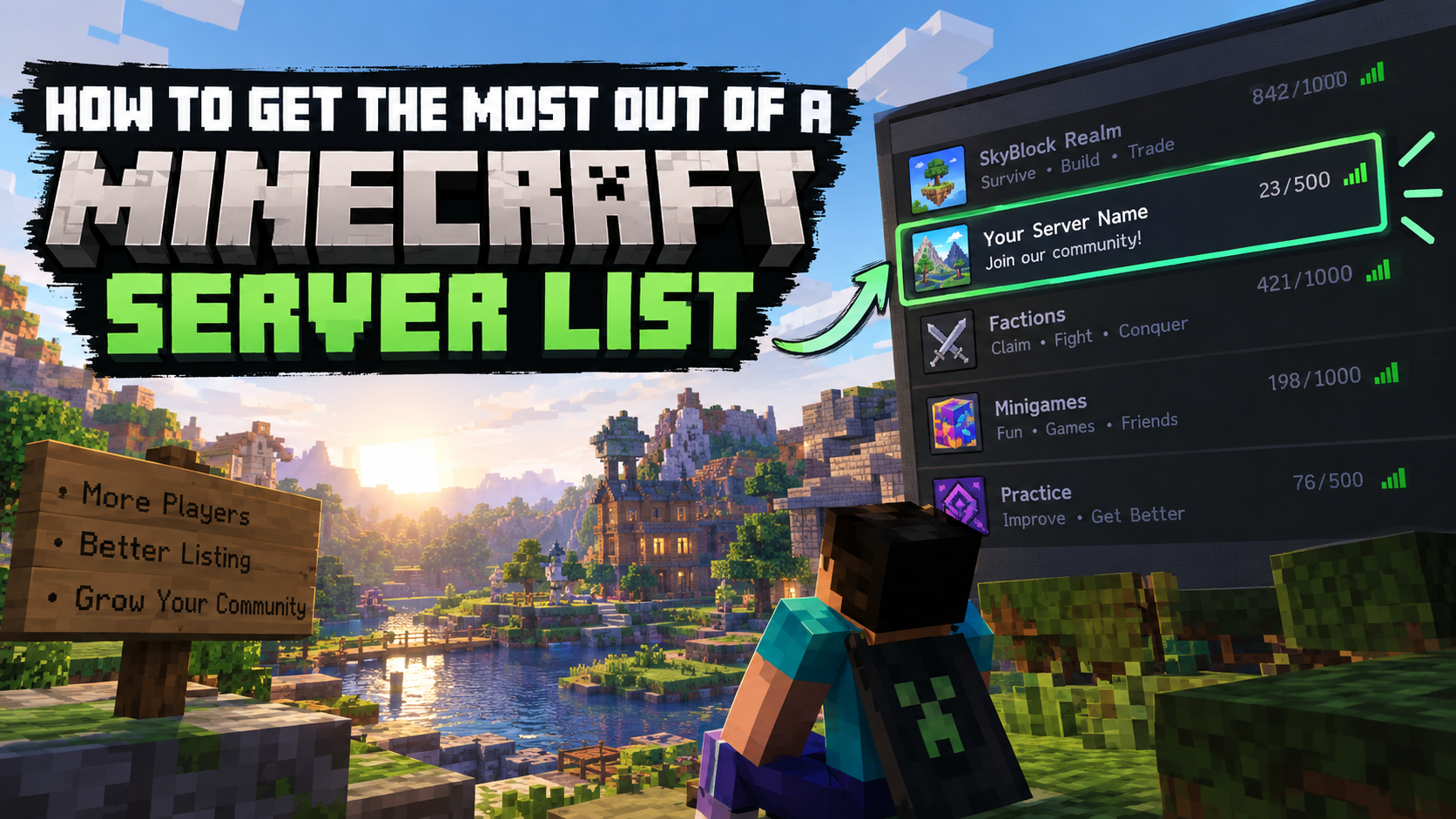
Once your server is stable, add it to CraftedServerlist so players can find it by game mode, version, platform, and features. Use a recognizable icon, a readable 468x60 banner, an accurate description, and the correct Java and Bedrock addresses.
CraftedServerlist also provides a server checker, MOTD generator, server icon maker, and Votifier tester to help prepare and verify your listing.
Common Minecraft Server Problems
“Unable to access jarfile”
The terminal is in the wrong folder or the JAR filename does not match the startup command. Open the terminal in the server folder and verify the filename.
The server closes immediately
Launch it from a terminal instead of double-clicking the JAR so you can read the error. Common causes include an unsupported Java version, insufficient memory, an unaccepted EULA, or an incompatible plugin.
Friends cannot connect
Confirm that the server is running, the correct port is allowed through the firewall, port forwarding points to the correct local IP, and your internet provider permits inbound connections. Some connections use carrier-grade NAT, which can prevent normal port forwarding.
The server is lagging
Reduce view and simulation distance, remove poorly optimized plugins or mods, pre-generate large worlds, use fast storage, and check CPU usage. Adding more memory will not fix every performance problem.
Final Checklist
- Correct Java or Bedrock edition selected
- Correct Paper build and Java version installed
- EULA reviewed and accepted
- Server properties configured
- Firewall and ports tested
- Online-mode or allowlist configured safely
- Backups created and tested
- Plugins and mods downloaded from trusted sources
- Server tested by an outside player
- CraftedServerlist listing created with accurate information
You do not need a massive network to run a good Minecraft server. Start with a dependable Paper setup, clear rules, regular backups, and a small group of players. Add Spigot-compatible plugins, voting rewards, and public promotion after the basic server is stable.